
Introduction
Acknowledge is a 'SharePoint Webpart', 'SharePoint Full Page', 'Teams Tab' or ‘Teams Personal App’. A free user productivity app for Read and Understood (available here in the Microsoft Marketplace).
To use the Acknowledge app, you need to have a ‘Read and Understood for SharePoint Online’ active subscription.
More details about Acknowledge and detailed steps for adding the app to pages can be found here.
Quick Access Links
Acknowledge App Removal
Important: While customers running 2.1.1.1 or later version of Acknowledge should be able to upgrade, there appears to be a Microsoft issue in that having performed the upgrade the app remains at the previous version. We recommend removal of the old app first before proceeding with the adding the new version.
If the Acknowledge App has been added to a SharePoint page, then temporarily edit the page to remove the old app and Save the page. Keep the page open in a browser tab as you’ll want to add the new app later.
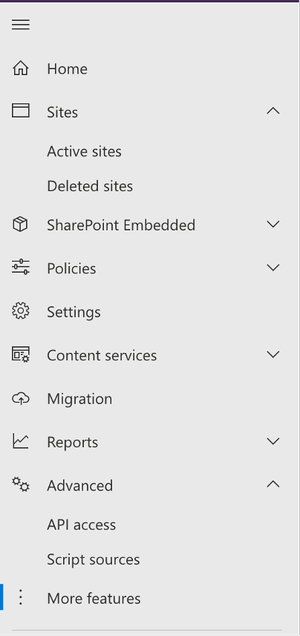
- Navigate to the SharePoint Admin centre
- From the Site Menu, click More Features…
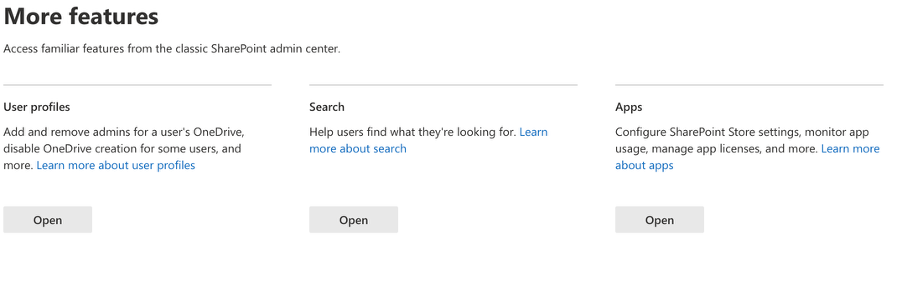
- Click Apps. This will open the AppCatalog site.
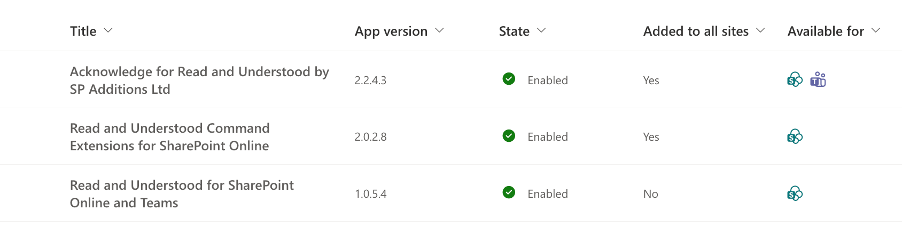
- You can now see all SharePoint apps listed. Select Acknowledge (note the name may differ slightly)
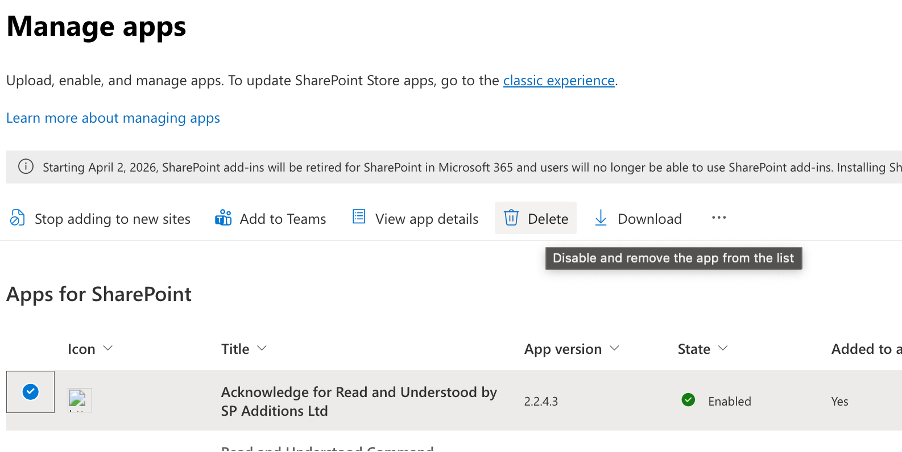
- With Acknowledge selected, click Delete.
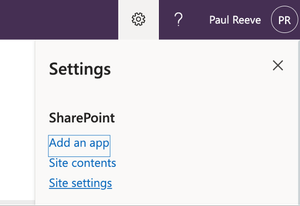
- To complete the removal you will have to also clear it from the two site Recycle Bins. Click the to Cog icon in the top right of the SharePoint site.
- Click Site Settings
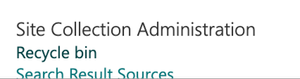
- From the Site Collection section of Site Settings, click Recycle Bin.
- You’ll see the Acknowledge app, if there are no other files, click 'Empty Recycle bin' else select the acknowledge app and click delete > confirm the deletion.
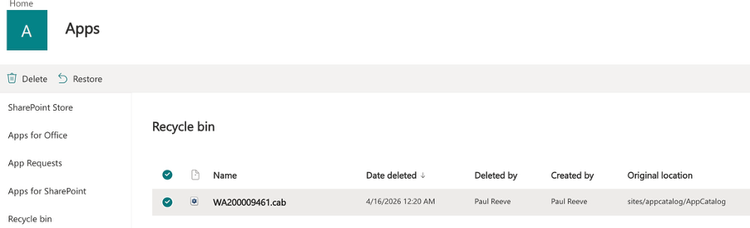
- At the bottom of the page you’ll see a link for the 2nd stage recycle bin, click this link.
- The Acknowledge app will appear, again delete and confirm the deletion. It will have been completely removed.


Install Acknowlege from Microsoft App Source
We are now ready to add the new App to your tenant.
Click this link to Microsoft Marketplace and Click the ‘Get it now’ button.
When Prompted to provide the app permissions, do not alter the permissions unless you are experienced in managing deployments to individual sites through PowerShell as you will be blocked from adding the app to any sites unless it’s explicitly granted access.
Once the App is added to your Tenant, you can add the App to a SharePoint page or, install to Team for users.
Update Read and Understood App Permissions
You will need to re-grant API permissions for the Enterprise Application ''Read and Understood - Modern SharePoint Application Principal if it hasn’t been granted the following API permissions and you wish to send Acknowledgement requests through Activities instead of Emails:
TeamsActivity.Send
TeamsAppInstallation.ReadForUser.All
Teams Deployment
Policies can be created in the Teams Admin center to manage the deployment of apps to Users Teams application. This Microsoft Article can provide an overview of how Policies simplify the management of App deployment to users https://learn.microsoft.com/en-us/microsoftteams/app-policies.
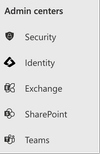
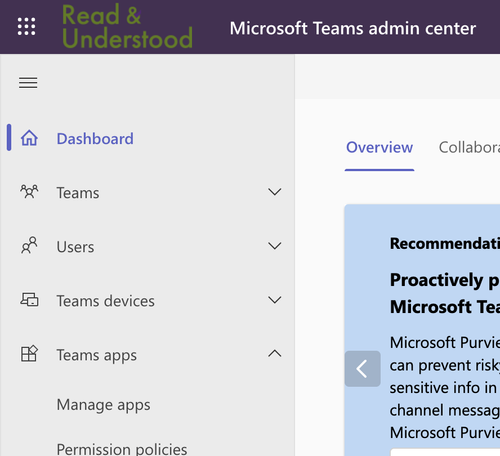
- Navigate to the Teams Admin centre
- From the Teams Admin Centre navigation,
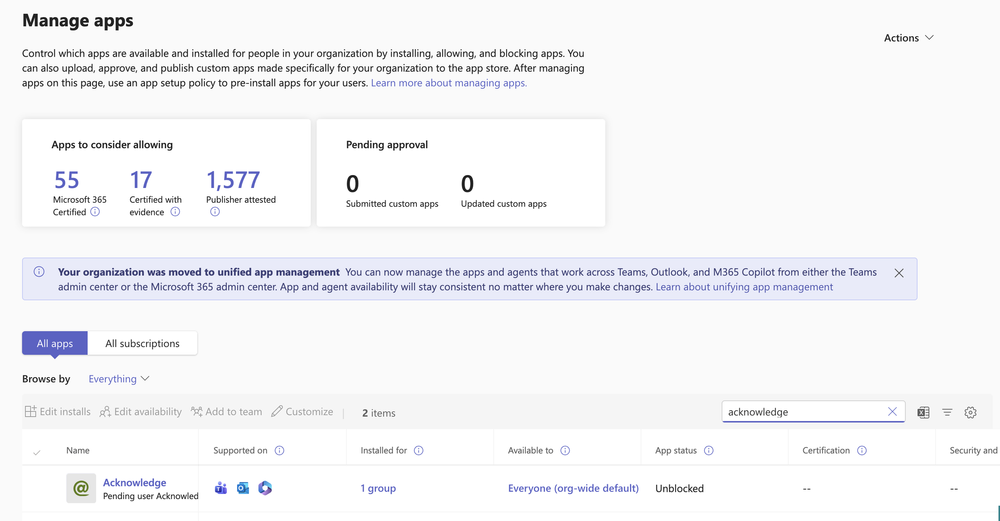
- Using the app Search, type acknowledge to locate the app
- Click Edit Installs
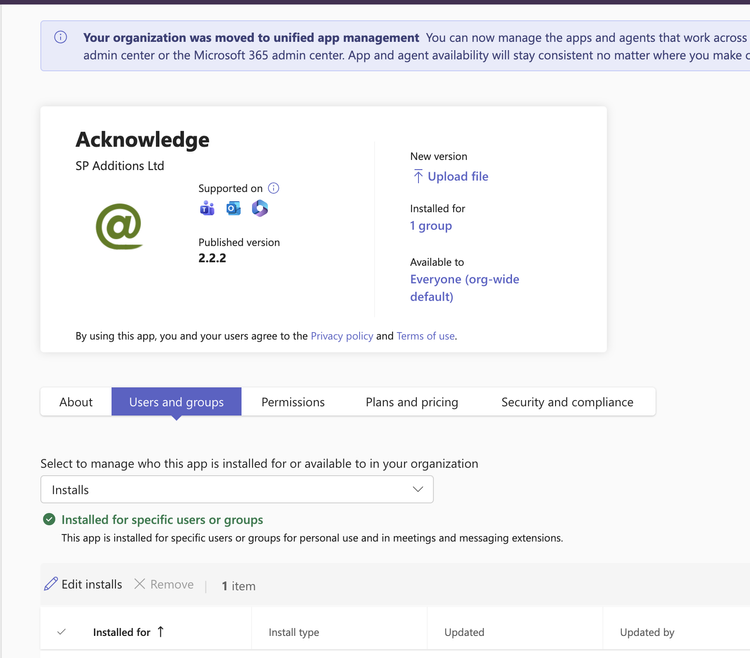
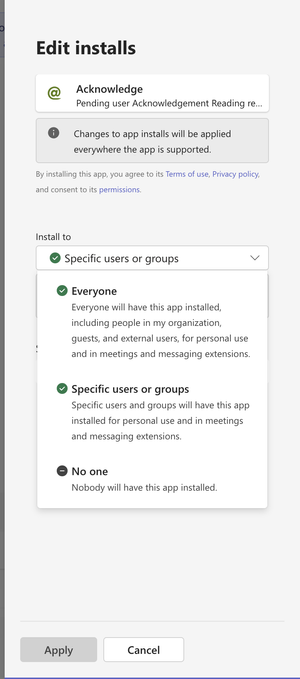
You can now choose who you wish to install the Acknowledge app for.
Important: it is not possible for users to receive acknowledge activited unless they have manually installed Acknowledge, or, using the instructions above, you have installed Acknowledge on their behalf. Microsoft only allow us to send activities to those uses where the app is installed.