
Introduction
Our apps will receive updates and once approved by Microsoft they will appear in the Marketplace. We will notify customers when new updates and we advise you upgrade them at your earliest convienience to benefit from enhanced features.
AppSource vs Marketplace
Microsoft (2026) have made a change to the way Apps are delivered to 365 and apps that were previously in AppSource were automatically transfered over to the Marketplace. We have found that if you are upgrading from a previous version of Read and Understood (prior to 3.0.0.5), then this would have originally been an AppSource version. Equally, if you are upgrading from a previous version of Acknowledge (prior to 3.0.1.0), then this would have originally been an AppSource version.
Why this matters? We have found that if you try to upgrade an app in Marketplace and the original version you have was from AppSource, the upgrade option is not available to you. Therefore, the instructions below will walk you through deleting the old version before you will be able to install the upgraded version.
Will deleting the App stop break anything until the new one is added? No, ideally we’d want you add the upgraded version immediately after the removal of the old version, but all the time the Enterprise Application permission remain in place, both apps can access and process your data.
Upgrade Option is Offered
If, when upgrading the Marketplace offers the option to upgrade, simply click the button to do the upgrade and that’s it. If however, the upgrade is not offered then there are a few additional steps to follow.
Upgrading Read and Understood and/or Acknowledge
If both apps require upgrading then you can do both at the same time as it will be quicker, especially if the upgrade button in the Marketplace is not available.
Important: The instructions should be followed by someone with SharePoint Admin role + permissions to Grant Enterprise Application permission for Read and Understood.
Start by navigating to the Sharepoint Admin Centre and from the navigation, click More Features.
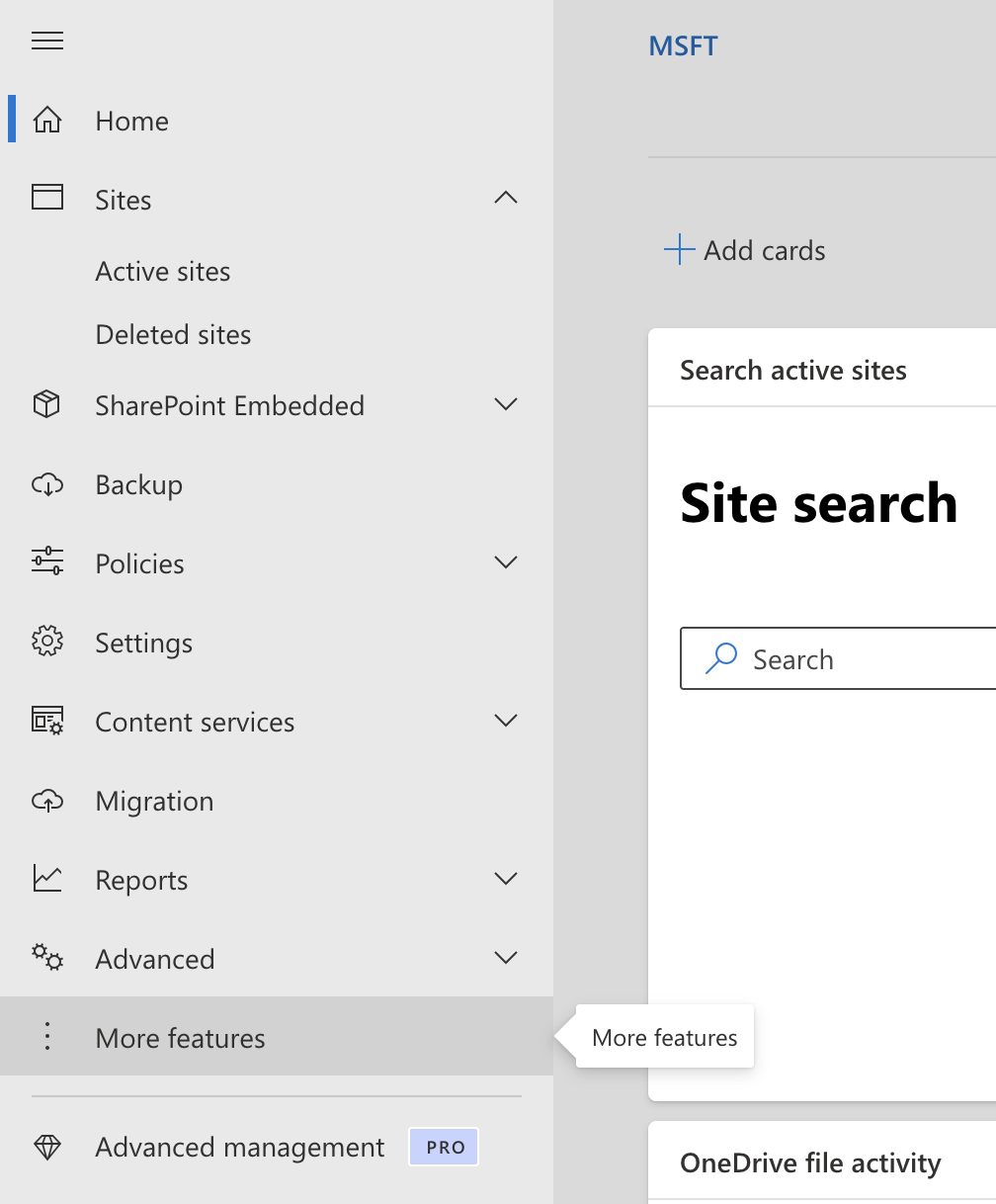
More Features in SharePoint admin centre
Click Apps in the More Features page
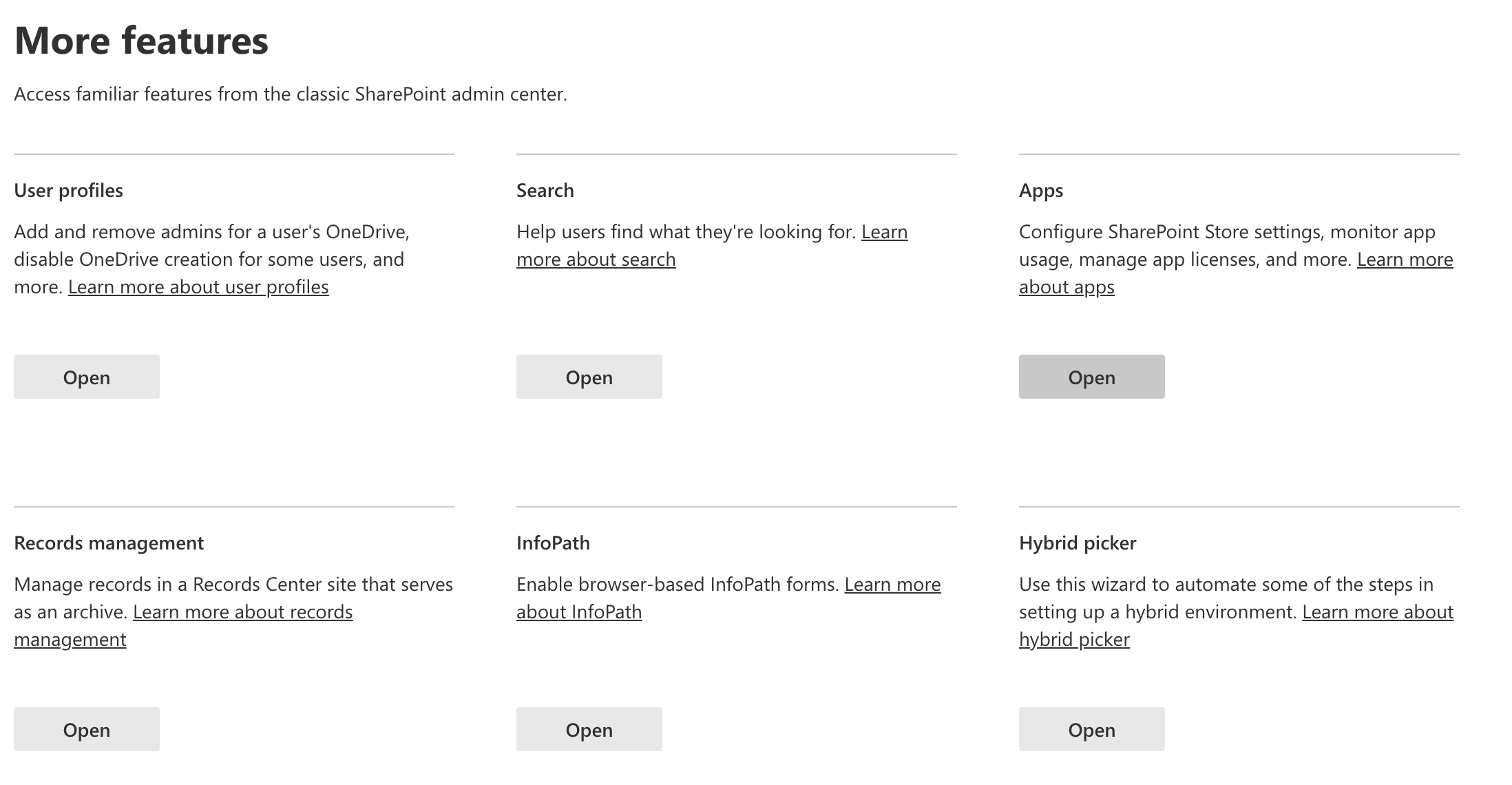
You’ll see the Apps in the Manage app page and their versions.
Note: If either app version are before Read and Understood 3.0.0.5 or Acknowledge 3.0.1.0, then the upgrade is unlikely to be offered, therefore you may have to delete the app and re-add it.
Select one of the apps to upgrade, click ‘View app details’ in the toolbar. this will open the app in the Microsoft Marketplace in a new browser tab. Repeat the step for the other app if it requires upgrading. Again, it will open a new browser tab and display the in the Marketplace.
If you are offered the upgrade, click the upgrade option in the Marketplace, skip the steps below to delete the app and remove it from the recycle bins.
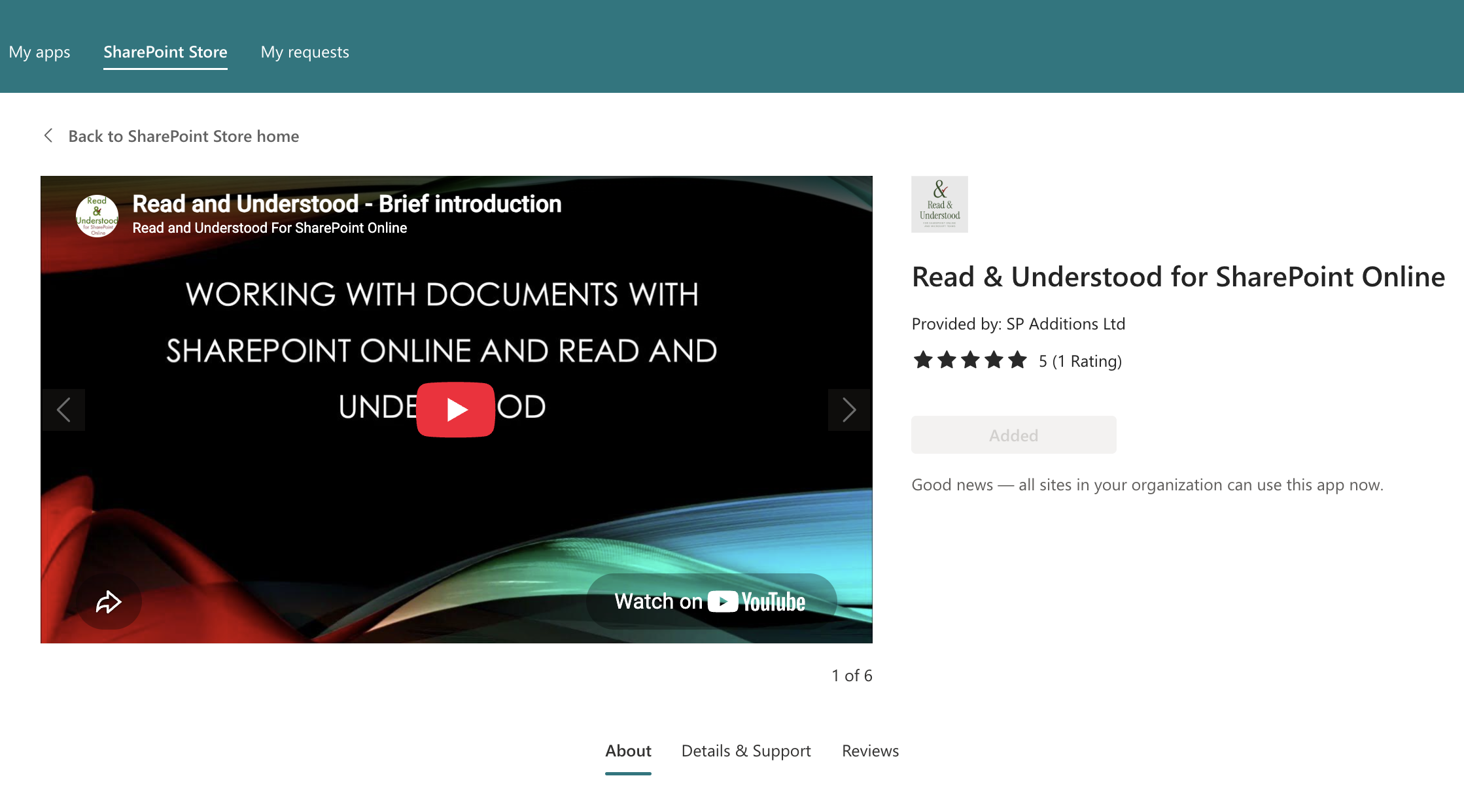
Note: The App page below shows the upgrade button not available and it’s greyed out (diabled) and in which case you’ll have to delete the app before it can be added.
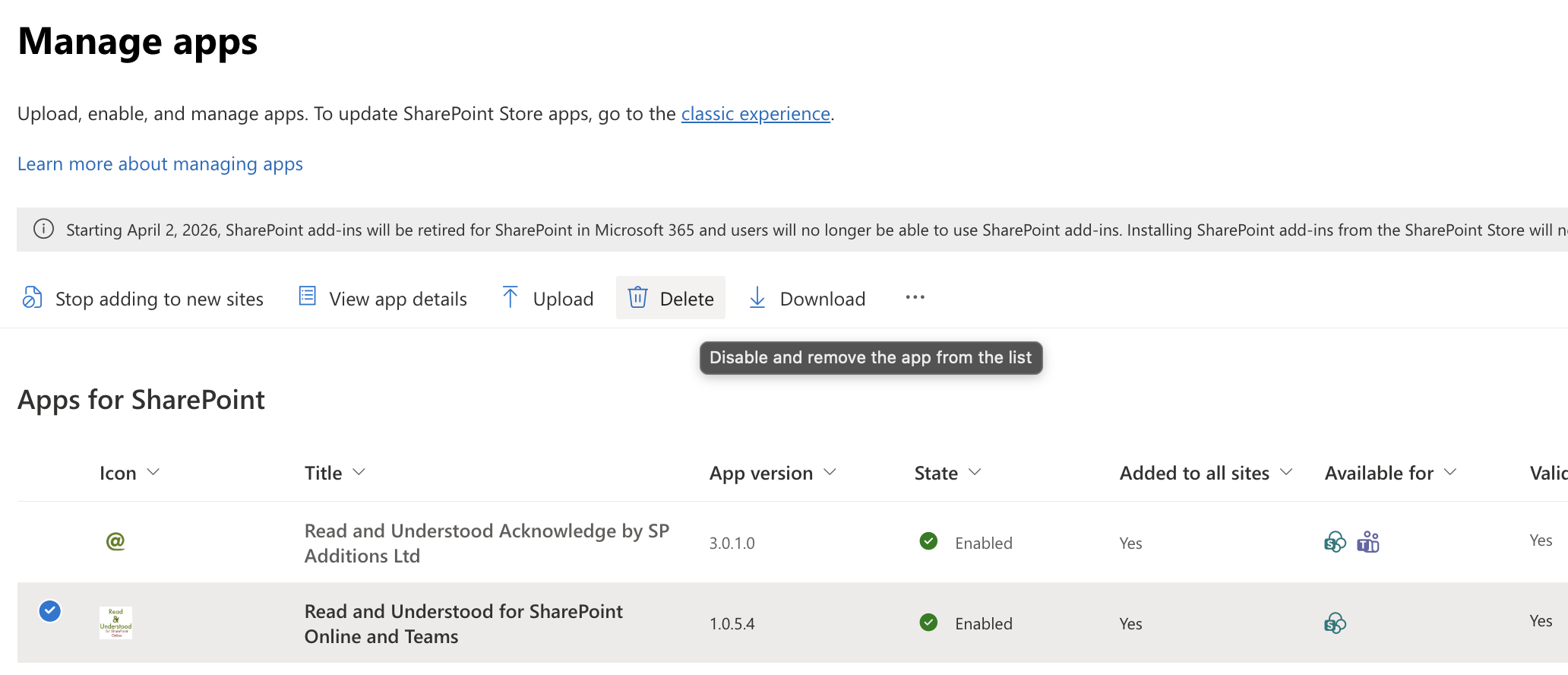
With the app to upgrade selected, click Delete.
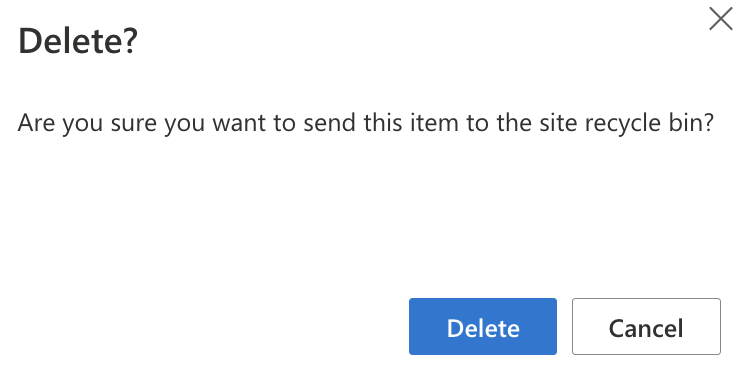
You will be prompted to confirm deletion, click Delete
If you are upgrading the other app, then repeat the steps by selecting the app, clicking delete and confirming the delete.
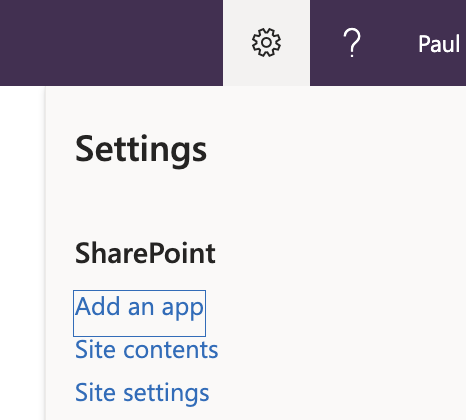
Next, we need to remove the old apps from the SharePoint site Recycle bin. By clicking the Cog top right of the page, click Site Contents
From the Site Content page, click Recycle bin in the navigation across the top and to the right of the page.
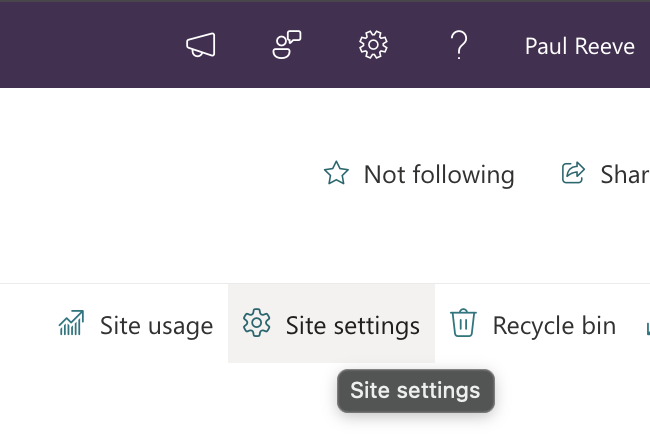
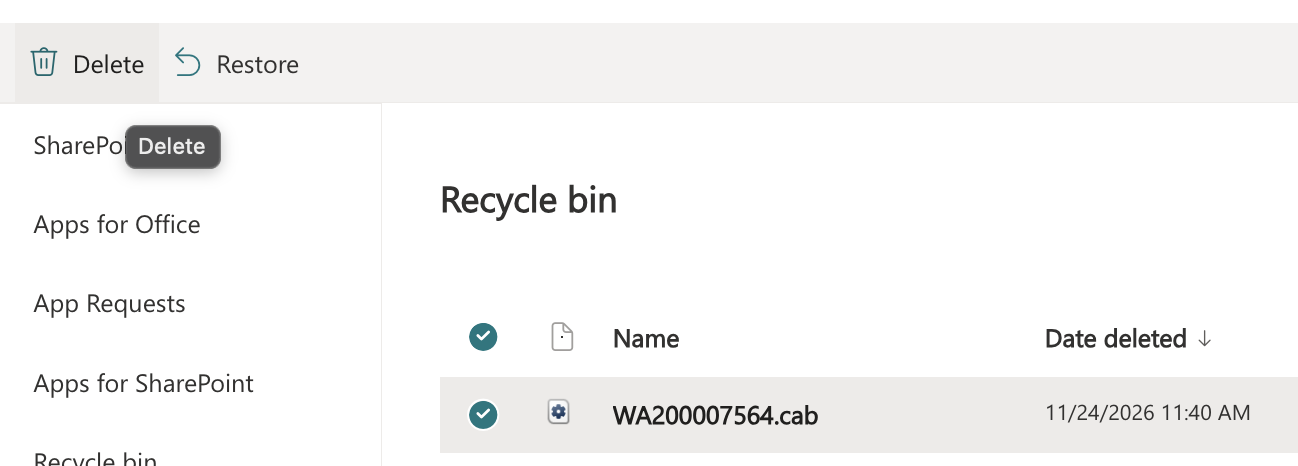
From the Recycle bin, look for an app/s (note: the number may differ from what’s displayed).
Select the file/s and click Delete
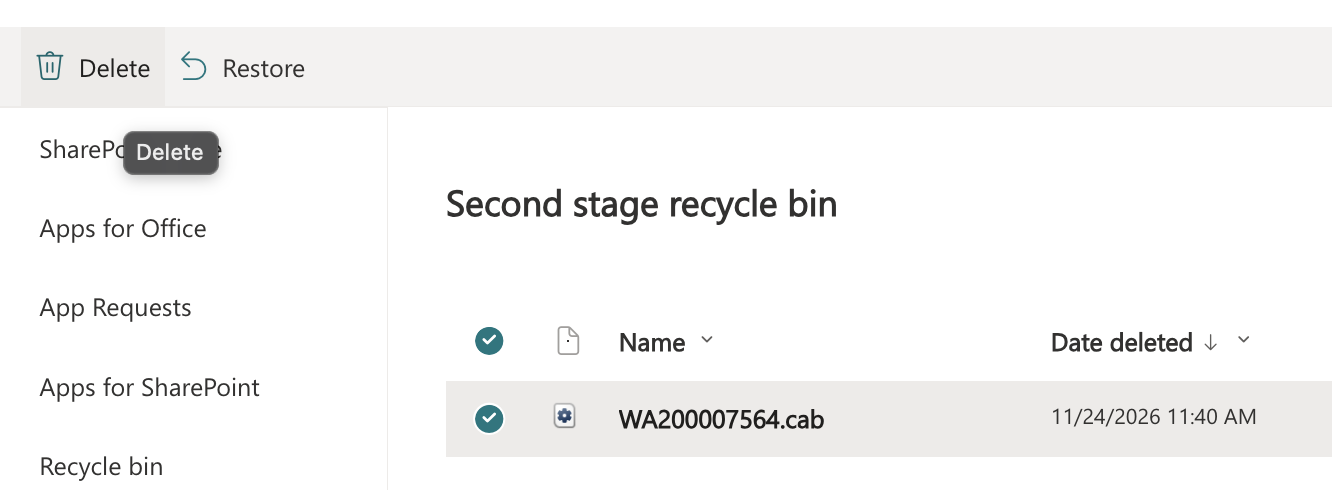
Note: this will delete the file/s from the bin, however, they’ll now be under the Second stage recycle bin. A link, located at the bottom of the page will take you to the second stage recycle bin.
Locate the old app/s in the Second state recycle bin and delete them.
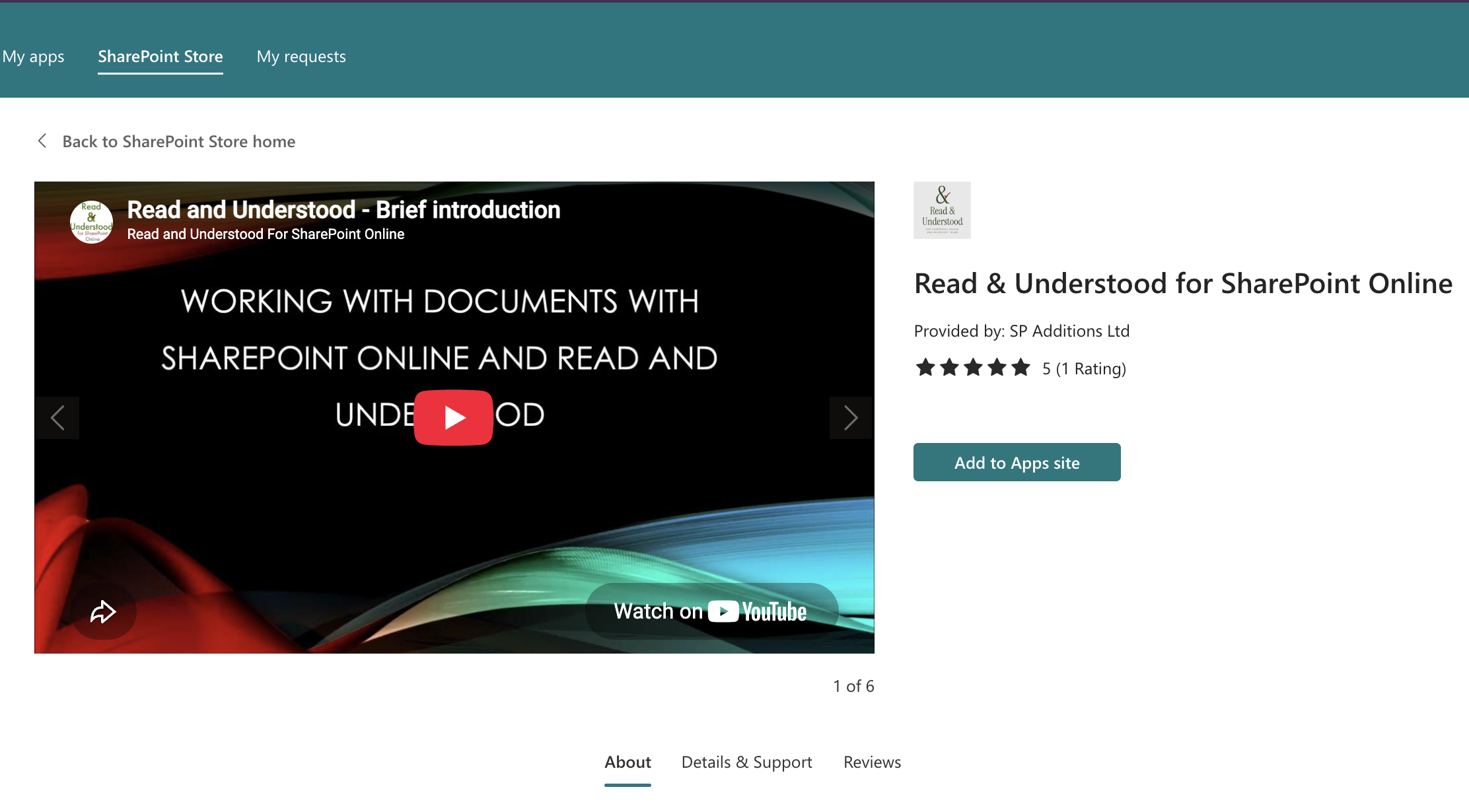
Open the tab for the App to upgrade, refresh the page and the button will now be available to add the app to the site. Click Add to Apps site.
you will be asked to Confirm data access. Click Add.
Important: Do not change the App availability. The description is misleading by saying Enable this app and add it to all sites, the app will on be added to site where you chose to make it available and would have to be added by site admins.
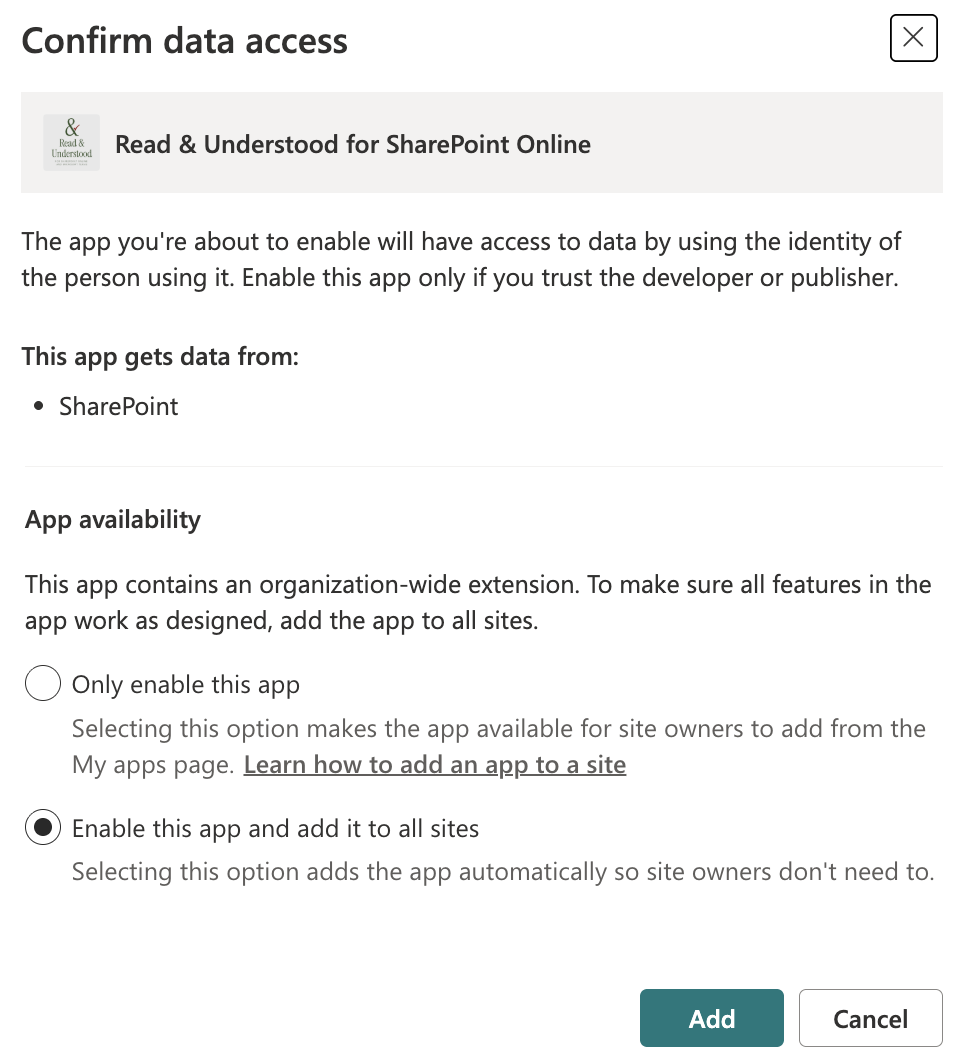
Repeat the steps, if upgrading the other app, by opening the Marketplace tab for the other app, refresh the page to enable the button, click Add app to Apps site and confirming the data access.
Important: Do not change the App availability.
That completes the App upgrade.
Verifying the App Enterprise Permissions
The link below will enable a Tenant Administrator to Grant the Read and Understood App the necessary Permissions:
Authenticate to your Tenant using your Tenant Admin permissions.
Click the Grant admin consent for MSFT button
Result: a Permissions requested pop up is displayed.
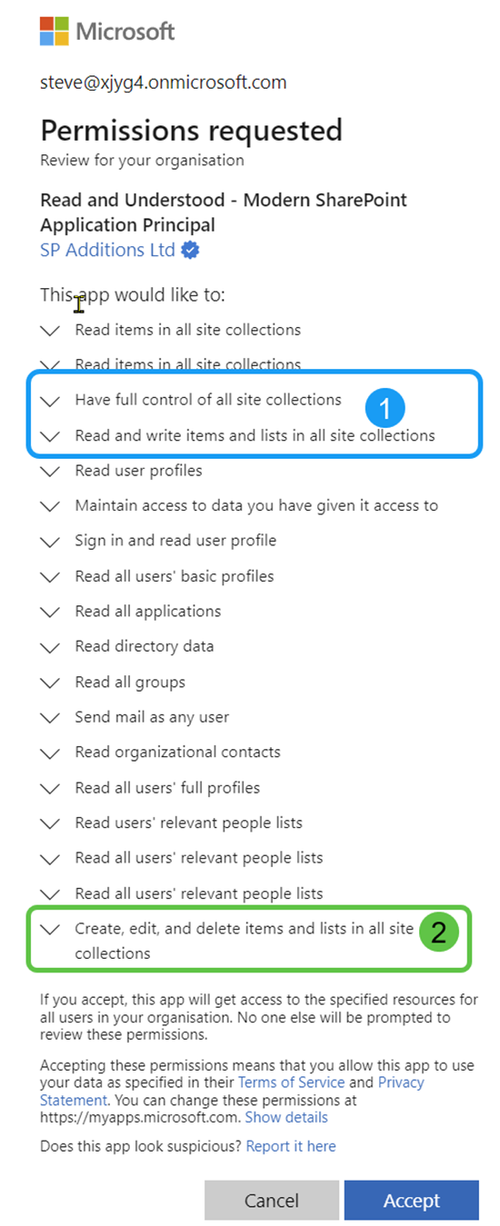
Note: The image above shows permissions that can be adjusted. If you’d like to know more of how to adjust the permissions of the app and the impact of making the changes, more information is available here.